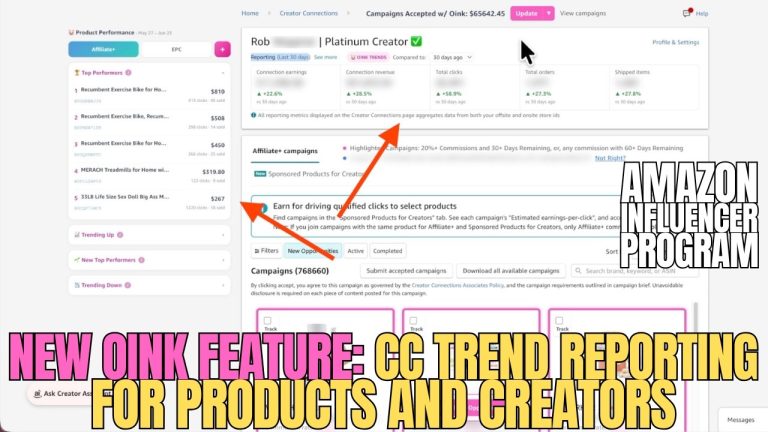
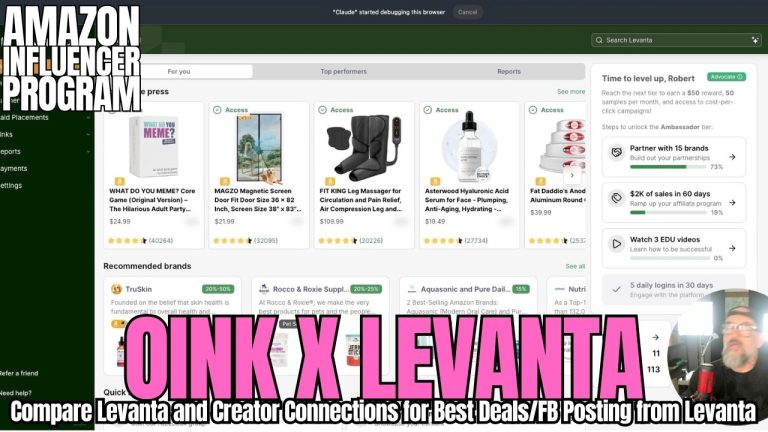
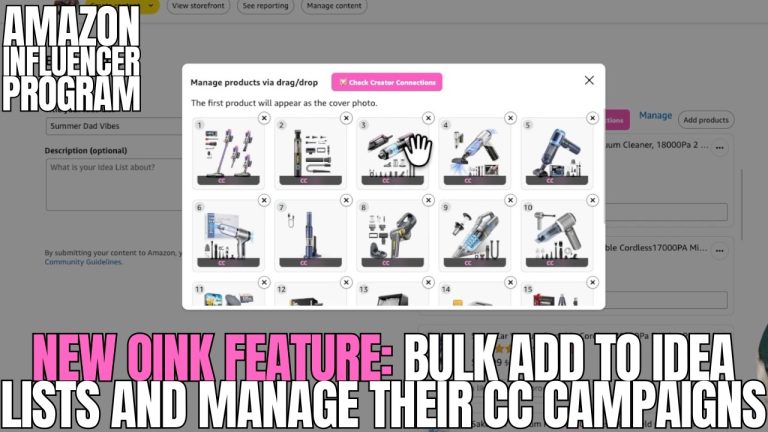
With the new Oink feature I just shipped, you can take a list of products, find every Creator Connections campaign attached to them, turn those into Genius Links, auto-accept the best CC and EPC campaigns, and then bulk-create Facebook posts for your deals group — all in one sitting. If you’ve been trying to grow your off-site income, specifically with a Facebook group, this update was built for you. Here’s exactly how it works.
In This Article
- What the Bulk Facebook Post Creator Does
- Start From Any Product Page
- Filter by EPC Before You Post
- Genius Links Built Right In
- Building Your Posts: Link in Post vs. Link in Comments
- Scheduling Posts to Your Facebook Group
- Creating Pictures With Canva
- Work the List, Mark It Done, Repeat
What the Bulk Facebook Post Creator Does
The whole point here is creating a bunch of Facebook deal posts in one sitting, then either scheduling them out on your group or posting them in real time depending on the post type. This is a feature for Oink Pro subscribers, and it chains together tools you’re already using: Creator Connections research, campaign acceptance, link conversion, and now post creation.
Start From Any Product Page
You can start from any product list page — I’ll demo with the coupons page, and you can also search for specific terms. Quick tip: this works great on the Deal Sub page too, and I highly recommend using it there sooner rather than later, because the Deal Sub has extras baked in, like showing you the publish schedule so you don’t post a deal ahead of time.
From the page, click the button in the bottom-left corner — same one you’re already using. Oink immediately goes through the products on the page and builds a list of everything that’s on Creator Connections, along with the metrics that matter, especially the EPC column.
Filter by EPC Before You Post
Here’s my first move every time: click “Remove No EPC.” Why? Because these posts are going to Facebook, and with EPC campaigns I make money even if people click and don’t buy. If you’re Gold or Platinum, filter to EPC-only — you should only be posting products that pay you on the click. If you’re Bronze or Silver, you’re not part of that ecosystem yet, so you can leave it unchecked.
Then either check-box everything, or cherry-pick the specific products you want to repost. Either way, you’ll see the new “Bulk Create Facebook Post” option.
Genius Links Built Right In
When you click Bulk Create, Oink asks if you want Genius Links. I built this functionality directly into the software. One-time setup: grab your API key and secret key from your Genius Link dashboard (under Tools, then Genius Link API), then on your storefront go to Account, then Integrations, and drop both keys into the Genius Link section.
Not a Genius Link user? Just pick “No, use plain links” and convert them afterwards with whatever you use. If you’re on Postaff or something else, I’ll incorporate those eventually. After the links, Oink offers to auto-accept the campaigns — I highly recommend it. It accepts the best campaign across both Creator Connections and EPC.
Building Your Posts: Link in Post vs. Link in Comments
Now you build the actual posts from your vetted product list. Two ways to do it: put the link in the post body (which populates the link preview), or put the link in the comments. A lot of you are link-in-comments people. I actually do a combination of both, and there’s a strategic reason.
Oink gives you placeholders to speed this up — things like the discount percentage (“15% off”), which Oink collects for you, and the product name. Type your post, drop in the placeholders and the link, click Save and Next, and it automatically moves you to the next product. Don’t want to post one after all? Hit the X and it’s gone from the list. When everything has a checkmark, the button says Save and Finish.
Scheduling Posts to Your Facebook Group
Here’s the split: link-in-post content can be scheduled ahead of time, because everything lives in one post. Link-in-comments posts can’t be scheduled — you can’t schedule a comment — so I save those and post them in real time, sporadically through the day when I sit down.
In your group, click to create a post, insert your saved Oink post, watch the preview populate, maybe bold a line for flavor, and schedule it out. That’s it. Mark it done in Oink and it filters to the next one automatically.
Creating Pictures With Canva
Link-in-comments posts have a problem: no link preview means no picture. That’s where the “Create Picture in Canva” option comes in. It takes you to Canva’s Amazon-certified picture creator, and Oink copies the product ID to your clipboard automatically. Paste it into the Amazon creators box, hit enter, tag and add the product to your design, stretch it to fit, and download. I also drop our group’s little logo in the corner for some extra pizzazz — totally optional, but it makes the post feel special. Upload the picture to your post, publish, then immediately drop the link in as a comment with Oink’s insert button. Done.
Work the List, Mark It Done, Repeat
Every time you mark a post done, Oink filters to the next one. When the whole list is finished, hit “Mark List as Completed” to clear it out, go back to another product page, and start building the next batch. That’s the loop: vet products by EPC, bulk-create the posts, schedule the link-in-post ones, drip the link-in-comments ones in real time. Your Facebook group gets consistent, money-making content while you do it all from one sitting.
If you’re trying to grow your Facebook deals group faster and make more money doing it, this is exactly the kind of grunt work Oink was built to eliminate. The Bulk Facebook Post Creator is live now for Pro subscribers — grab Oink for Influencers at oinkforinfluencers.com and turn your next product research session into a week of scheduled posts.