I get asked for this one constantly, so I finally just hit record at 12:30 in the morning and did my nightly deal post in real time. No cuts, no cleanup. Fifteen posts, a mix of Walmart and Amazon deals, written by AI, posted or scheduled into two Facebook groups, with compliant images and link-in-comments handled. If you have ever wondered what the Oink cross-posting workflow actually looks like when you sit down to do it, this is the full walkthrough.
In This Article
- One Thing to Check Before You Start
- Step 1: Collecting Walmart Deals
- Step 2: Scanning Amazon Coupons With Oink
- Why I Pick Weird Products on Purpose
- Step 3: Deep Links and AI-Written Posts
- Step 4: Posting, Scheduling, and Sharing to Groups
- The Canva Trick for Compliant Images
- Don’t Forget the Comment
- Setting Up Your AI Writer Instructions
- What This Looks Like After a Week
One Thing to Check Before You Start
Before you touch anything on the Walmart side, make sure you are logged in at creator.walmart.com. That is what Oink uses to generate your Walmart deep links. Once you are logged in you can close that tab and forget about it. If you skip this step, the links do not build, and you will spend ten minutes wondering why. On the Amazon side, your Associates or Influencer login is all you need, and if you use Genius Links (I do, and I recommend it), have that connected in your Oink account too.
Step 1: Collecting Walmart Deals
I start on Walmart because it is fast. I browse the deals pages looking for two things: a rollback or clearance price, and the green deal label. A product can be cool, but if it is not visibly a deal, it does not pull nearly as many clicks in a Facebook group. On this run I grabbed a Ninja appliance marked down from $179 to $159, a Bluey cruise ship toy with Christmas coming, a patio set, a boneless chair (more on that below), and then searched “Thanksgiving” to find a few seasonal rollbacks. Seven Walmart products in about ninety seconds.
Each one gets added with a single click, and the Oink side panel opens up with your running list. I just drag the panel off to the side so I can keep browsing and watch the list fill.
Step 2: Scanning Amazon Coupons With Oink
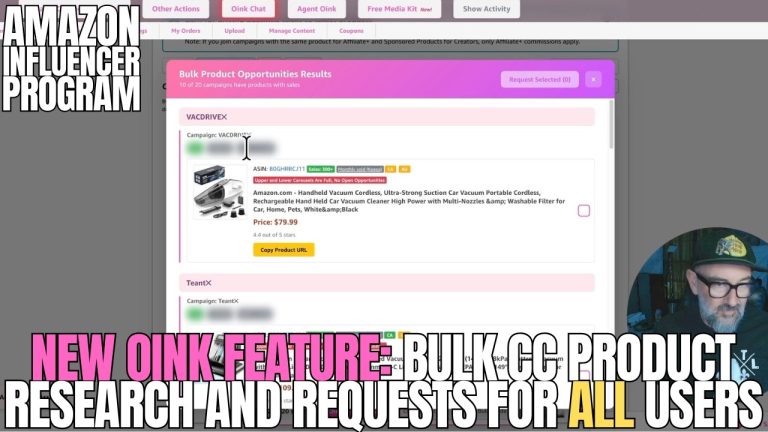
Then I jump to Amazon. My favorite hunting ground is the coupons page. I run the Oink scanner with a few quick filters: at least 7% off, price capped at $100, and a floor of about $16 so I am not posting $4 items that pay nothing. It found 26 products on the page in a few seconds. I also toggle “remove no discount” so everything left on the list is an actual deal.
From there I select products straight into Bulk Create Facebook Post. On this night: a holiday item, a mouthwash (the blue packaging caught my eye, and that is the point), a brown leather bag, a robot vacuum, an ice maker at 59% off, a portable car vacuum, and a bug zapper. I skipped the whitening strips and the humidifier. I do not post supplements in my groups because my audience has never reacted well to them. Know your people.
Why I Pick Weird Products on Purpose
Here is the piece that most people miss about deal posting. The person who clicks does not have to buy that product for you to get paid. When someone clicks your Amazon link, you get the cookie, and whatever they buy in that session counts. So I am not only looking for things people will buy. I am looking for things people will click.
That is why the boneless chair made the list. Will many people buy it? Probably not. Will someone click it to figure out what a boneless chair is? Absolutely. Bright colors, odd gadgets, big percentage-off numbers like that 59% ice maker: these generate curiosity clicks, and curiosity clicks turn into commissions on whatever lands in the cart afterward. This is the same logic I teach in the 5 Pillars system for storefront content. Attention first, conversion follows.
Step 3: Deep Links and AI-Written Posts
With fifteen products in the panel, I click Create Deep Links. Oink builds the links through my “Deals FB” Genius Link group, and while it is doing that it also checks each Amazon product for Creator Connections campaigns, Affiliate Plus, and sponsored product opportunities. On this run it came back with three sponsored products and two Creator Connections campaigns attached automatically. That is bonus money layered on top of a post I was going to make anyway.
Then one button: Write All 15 Posts With AI. It runs in the background. While it works I switch Facebook from my personal profile over to my group page, because the two things are independent. By the time I am on the right page, the posts are done, complete with disclosures and the “see it on Amazon” language that Amazon requires whenever you share a link.
Step 4: Posting, Scheduling, and Sharing to Groups
Every item in the list has an Insert Post button. Click it and Oink drops the finished text into the Facebook composer. For Walmart posts, the link lives in the body for now, because there is no official way to pull Walmart product images and I am not going to copy them and risk a terms-of-service problem. The link preview generates the image for you.
From there you have three moves, and I used all of them in the video:
- Post now. As soon as you click Post, Oink marks that item Completed on its own. You do not have to track anything.
- Schedule it. It was 12:30 AM, so I scheduled most of these for the next morning and afternoon at 7:55, 9:05, 10:45, 11:05, and 12:35. Spread them out instead of dumping fifteen posts at once.
- Share to groups. Facebook’s share-to-group option lets you push the same post into a second group in one step. I alternated so both groups got a mix of Walmart and Amazon deals.
If you skip something, it stays in the queue. If you mark something done and change your mind, scroll down, mark it Not Done, and it pops back to the top. I used the Amazon label filter partway through just to pull the Amazon posts up and mix the feed so it was not five Walmart posts in a row.
The Canva Trick for Compliant Images
Amazon posts where the link goes in the comments need a picture, and this is where people get sloppy. Amazon’s terms of service get into a gray area when you right-click and save product images to your hard drive. The approved path is the Amazon Creators integration inside Canva, and Oink is built around it.
Click Create Picture in Canva, pick a Facebook Post design, and when the Amazon Creators panel opens, just paste. Oink already copied the ASIN for you. Tag it, add it to the design, stretch it to fill the frame. I drop my little pig logo on the corner purely for branding, which is optional but makes your posts recognizable in a crowded feed. Share, download, and drag it into the Facebook composer. It ends up being essentially the same image you would have copied, but it came through the official channel, and I never have to worry about Amazon asking what is stored on my computer.
Don’t Forget the Comment
If your post says “link in the comments,” the link has to actually be in the comments. I have caught myself moving fast and realizing an hour later that three posts had no link under them. Oink gives you an Insert Comment button for each item. Click it, hit Enter, done.
This works on scheduled posts too, and that surprises people. Go to your group’s Manage Posts section, open the scheduled post, and use Insert Comment there. When the post goes live at its scheduled time, the comment with the link publishes right along with it.
Setting Up Your AI Writer Instructions
None of the AI writing works well unless Oink knows how you talk. Go to your storefront, open Account, and click Cross-Posting. The Walmart section I leave basic; the Walmart short link already deep links itself, so I do not even route it through Genius Links. The Amazon section is where you spend your time:
- Style instructions. Mine say to open with attention-grabbing hooks (“Gift idea alert,” “Calling all overachievers”), use a mix of short punchy sentences and descriptive ones, and keep the main post under 300 characters. Copy mine if you want. I have hardcoded the writer to avoid repeating the same openers across a batch.
- Where the link goes. Post, comment, or random. I use random so my group feed does not look templated.
- Emojis. I leave it on “lots.” Your call.
- Disclosure line. I use #affiliate. #ad works too.
- Default hashtags for Amazon and Walmart posts, if you want them.
- Extra instructions. Mine are “never mention prices” (they change) and “always say the link is an Amazon link,” because Amazon wants people to know where a link is taking them.
Hit Save at the top and you are set. There is also a separate function up there for sending your storefront videos to Facebook instead of deals; I will cover that in its own video.
What This Looks Like After a Week
The first night feels clunky because you are learning where the buttons are. By the third or fourth session you will be faster than I was in this video, and I was doing it tired at midnight while narrating. Fifteen deals, two groups, images handled, comments handled, half of them scheduled into the next day, in roughly twenty minutes. That used to be an hour-plus of copy, paste, write, screenshot, and forget.
Everything shown here, the scanner filters, bulk post creation, AI writing, Canva integration, deep links, and the Creator Connections and sponsored product detection, is part of Oink Pro. Watch the full real-time run below.
If you are running Facebook groups as an Amazon or Walmart affiliate and still building deal posts by hand, grab Oink Pro at oinkforinfluencers.com, set up your cross-posting instructions, and do your next nightly post the way I just did.