I just pushed one of my favorite Oink updates in a long time, and the best part is that every single Oink user gets it — free and pro alike. It’s a brand new way to research and request products inside Creator Connections in bulk, so instead of clicking through campaigns one painful brand at a time, you can line up ten requests and fire them off with one move. If you’re an Amazon influencer or affiliate trying to get your grubby hands on more products to make content with (and ultimately more commissions), this is going to save you a ton of time. Let me walk you through exactly how it works.
In This Article
- Why Creator Connections Is a Goldmine
- Those Pink Borders Aren’t Just Decoration
- Meet Bulk Check Opportunities
- How to Select the Right Campaigns
- Picking the Products Worth Requesting
- One Product Per Brand — Be Precise
- Sending Requests in Bulk With Your Templates
- Free vs. Pro: Who Gets What
- How to Know It’s Live on Your Account
Why Creator Connections Is a Goldmine
If you’re in the Amazon Influencer Program, Creator Connections is where brands come to you with commission offers and free products in exchange for content. The problem has never been a lack of opportunities — it’s that sorting through them and requesting products one by one eats up your day. You’re trying to find brands worth working with, products that actually sell, and campaigns that won’t expire before you can film. That’s exactly the friction this new feature kills.
Those Pink Borders Aren’t Just Decoration
If you already use Oink on Creator Connections, you’ve seen us put a pink border around certain campaigns and label them “highlighted campaigns.” That border isn’t random. It means the campaign meets one of two bars: at least 20% commission with 30 or more days remaining, or any campaign with at least 60 days remaining. Think about it simply — campaigns with pink borders are better bets to convert. The commission rate is strong and there’s enough runway left to actually create content, get it live, and earn before the campaign ends. When I’m scanning, those are the ones I gravitate toward first.
Meet Bulk Check Opportunities
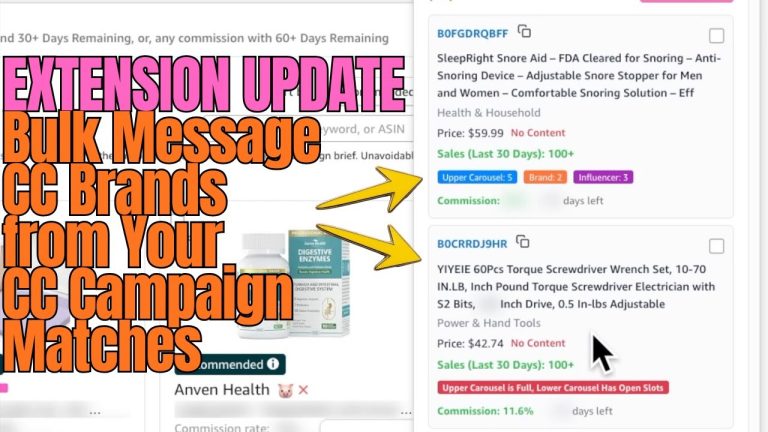
Here’s the new part. I built it so you can select multiple campaigns at once, check all of the products inside those campaigns, and then message those brands together. You start by clicking the new Bulk Check Opportunities button. The moment you do, Oink drops a little icon onto each campaign so you know it’s part of your bulk selection. From there you’re in control of how you build your list.
How to Select the Right Campaigns
You can go a couple of ways here. You can search for a niche — say you type in “vacuum” — and pull up only the campaigns that match, or you can clear the search and just start hand-picking campaigns across the board. My personal filter is simple: I’m looking at how many days are left. If a campaign has at least 60 days remaining and it’s showing up on the highlighted list, I’m interested. That combination tells me there’s real commission upside and enough time to make it pay off.
Picking the Products Worth Requesting
Once you’re checking opportunities, you go through and select the specific products you want to request. A lot of brands list more than one product, and Oink sorts them with the best seller first. You’ll see the sales velocity right there — something like 300 units sold in the last 30 days, then 200, and so on. That ranking does the heavy lifting for you. Nine times out of ten I just grab the top seller, because that’s the product with proven demand and the best shot at converting once I make a video for it.
One Product Per Brand — Be Precise
One rule to keep in mind: you can only select one product per brand. That’s by design. We want to be direct and precise with these requests — one strong, best-selling product per brand instead of spraying a brand with five asks. So as you build your list, pick the single product from each brand that’s selling the best and move on. It keeps your outreach clean and gives each request its best chance.
Sending Requests in Bulk With Your Templates
This is where it all comes together. Once your products are selected, you hit Request Selected. The Oink brand messaging center pops up with the message templates you’ve already created. You just choose the template you want and click send. Here’s the magic: Oink automatically swaps out the brand name, the product ID, and the other variable details for every single message, so each brand gets a personalized request even though you sent them all at once. In the demo I requested 10 different products from 10 different brands in one move. That’s the whole point — the research and the outreach, collapsed into a few clicks.
Free vs. Pro: Who Gets What
Everybody gets this feature. If you’re on the free version of Oink, you can use bulk check and bulk requests on a limited basis — which is still a huge upgrade over doing it one at a time. If you’re a pro subscriber, you’ve got the big-dog access: more brands to connect with and a bigger ceiling on what you can research and request. Either way, the workflow is identical. Free or pro, you select campaigns, pick products, choose a template, and send.
How to Know It’s Live on Your Account
You’ll know the feature has rolled out to you the moment you log in and head to Creator Connections. Look for the toggle option at the bottom of the page. If it’s there, you’re good to go — turn it on and start building your first bulk request. This pairs perfectly with the rest of the Oink toolkit, from the highlighted campaign system to your saved messaging templates, so your whole Creator Connections routine gets faster end to end.
If you’ve been leaving commissions on the table because requesting products felt like a grind, this update is for you. Log into Creator Connections, flip on the bulk toggle, and start lining up your best-seller requests today. And if you don’t have Oink yet, grab it at oinkforinfluencers.com and put this whole workflow to work for your Amazon influencer business.