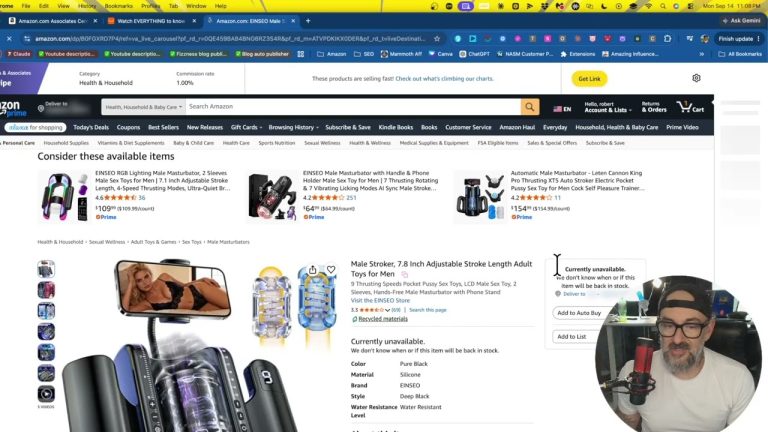
If you logged into your Amazon storefront recently and saw a yellow button up top you didn’t recognize — that’s the Oink Prime Days button, and it’s back. I turned it back on now that Amazon has confirmed the Prime Day dates and released the deals list, because this is the single feature I’d point any Amazon influencer toward first when it comes to preparing. Better yet, I made it free for every Oink user. Here’s what it does and how to actually use it.
What the Prime Days Button Actually Is
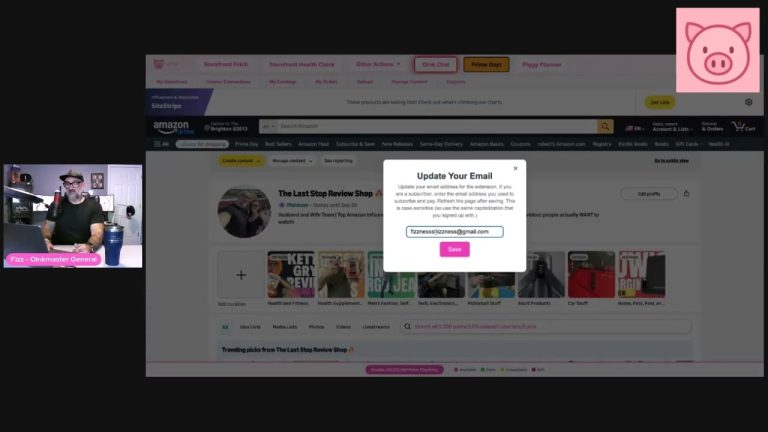
The Prime Days button lives right at the top of your storefront view inside Oink — it’s the yellow one you can’t miss. Its job is simple but important: it connects what’s happening with Prime Day to the products you actually care about. When Prime Day rolls around, the difference between a flat month and a big one comes down to whether your content is pointed at products that are genuinely on sale. This button is how you make sure it is.
Why It’s Back Now — And Not a Month Ago
I don’t turn this feature on year-round, and there’s a reason for that. The Prime Days button is only useful once two things are true: we know the actual dates, and Amazon has published the list of what’s going to be featured. Until then, it’s just guessing, and I don’t like shipping features that make you guess. Now that we have both the dates and the list in hand, the button does real work — so it’s back on your storefront.
I Made the Core Feature Free for Everyone
Here’s something I want to be clear about. The first part of this — the Prime Days button itself — is free for every single Oink user. It doesn’t matter if you’re on the free version of the extension or a pro subscriber. I built this specific function for everybody, because preparing for Prime Day shouldn’t be locked behind a paywall. If you don’t actually prepare, you won’t get anything special out of the event, and I’d rather every Oink user have a real shot at the pump.
How Influencers Should Use It to Prepare
Let me be blunt the way I always am about this. If you don’t prepare for Prime Days, you’re not going to get anything special out of it. You have to target products that are for sale during the event. The button hands you the list, and the list is what turns “I hope this works” into an actual plan. Once you can see what’s discounted, you know exactly which products deserve your camera time over the next few weeks — no more spreading yourself thin across items that were never going to move.
The Two Ways to Prepare — and the One I Recommend
As an Amazon influencer, you really only have two ways to get ready. The first is to bring in new products that are on the list and create fresh content for them. The problem is timing — once the list drops, you’ve got about 30 days, and that’s not a lot of runway. The second way, and honestly the one I lean on, is to go through the products you already own that show up on the list and make more content for them. Follow-up videos are perfect here: revisit a product you’ve had for three or six months and tell people why you still use it. It’s fast, it’s honest, and it stacks more of your content in front of buyers right when they’re ready to buy.
For Pro Subscribers: The Deals Hub
That free button is the first half. The second half is for pro subscribers, and it’s called the Deals Hub. While Deals Hub is active, you can do a serious amount of product research from one place. You take a product, click the button, and Oink runs its cross-checking — the same Storefront Cross Check process you already know — to tell you exactly where that product stands. It’s built to make the research grind during Prime Day prep dramatically faster than doing it by hand.
Spotting Creator Connections Campaigns Inside Deals Hub
One of my favorite parts of Deals Hub is that the results tell you when a product has a Creator Connections campaign attached. You’ll see a “see campaign” option right there in the results, and you can send the request without leaving the tool. That means you can scan the deals list, find the products with active campaigns, and pursue those collaborations all from the same screen — instead of bouncing between five tabs trying to piece it together yourself.
The New “Recent Reports” Feature
There’s also a new addition you’ll notice at the top of Deals Hub called Recent Reports. The deals reports are massive — they hold an enormous amount of data — and Amazon doesn’t want people downloading them over and over again. So Oink keeps a copy for you. Once you’ve downloaded a report, you can click Recent Reports and pull the one you already have instead of redownloading it from Amazon’s side. Oink holds onto it for five days before clearing it out, which is plenty for a normal prep cycle.
Get Your Prime Days Button Working
The Prime Days button is sitting on your storefront right now, free, waiting for you to use it. Pull the list, find the products that match what you already own, and start building content while you still have runway. If you want the pro side — the Deals Hub, the Creator Connections campaign matching, and Recent Reports — that’s all part of the Oink pro subscription. Either way, don’t let the button sit there unused. Head to oinkforinfluencers.com to get the extension and make this Prime Day the one you actually prepared for.