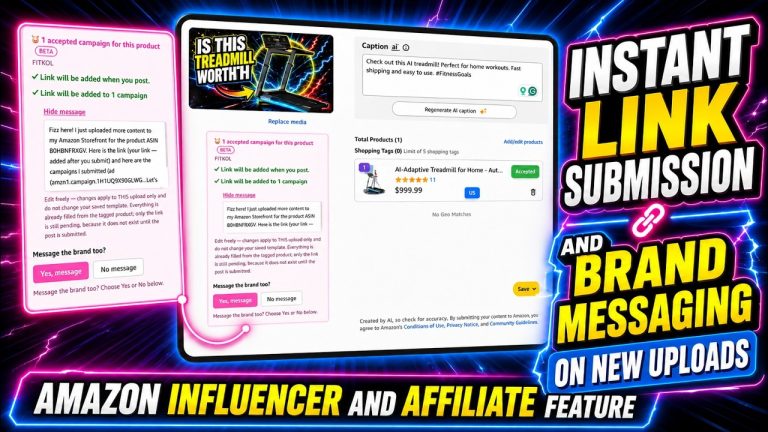
I just dropped one of the most requested updates into Oink for Influencers, and it’s a big one. You can now take content from your Amazon.com storefront — videos you’ve already published or brand-new uploads — and with one click push them over to Canada, the UK, and Australia all at the same time. Your video, your thumbnail, your title, and your product tag all get carried over and submitted automatically, while still giving you a chance to verify everything first. Here’s exactly how the new Quick Cross Post and Auto Submit feature works, and the cautions you need to know before you go wild with it.
In This Article
- What the New Feature Actually Does
- Cross-Posting a Brand-New Upload
- Auto Submit and Close When Done
- Working Through Your Backlog of Old Videos
- Using the CA/UK/AU Product Check
- Why You Still Verify Every Single Video
- A Serious Warning: Don’t Do Too Much, Too Fast
- How I’m Using It Myself
What the New Feature Actually Does
The idea is simple. You’ve got content sitting on your Amazon.com storefront, and the same products often exist in Canada, the UK, and Australia. Instead of manually rebuilding each upload geo by geo, Oink now takes your video file, your custom thumbnail, your title, and your tagged product and sends them all over to the other countries at once. It uploads them automatically for you — but it still pauses to let you verify everything is correct before it’s final. That verification step is intentional, because we want to stay fully compliant with Amazon’s terms of service. We should never be tagging products blindly. This is a Pro feature for Pro subscribers of Oink.
Cross-Posting a Brand-New Upload
Let’s say you’ve already got your cross-posting set up in Oink. (If you haven’t done that yet, there’s a whole tutorial dedicated to it.) You’ve got a new video to upload. You select the file, tag the product, drop in your custom thumbnail, and set your title. You don’t have to do a custom thumbnail, but it makes life easier when it’s all handled for you automatically. Once it’s set the way you want on the Amazon.com side, Oink ingests everything for you.
Auto Submit and Close When Done
Here’s the new part. There’s now a button that says “Auto Submit and Close When Done.” Select that, and Oink automatically submits the upload and closes the tab when it’s finished. Then you click upload, and if the product exists in more than one country, it opens a tab for each one — Canada, UK, Australia — and runs them through. The video comes in, the tagged product comes in, the thumbnail comes in, and the title is already populated. It all happens in one swoop. You can literally walk away from your computer and let it finish the process.
Working Through Your Backlog of Old Videos
This isn’t just for new uploads. If you’ve got a backlog of videos you already completed on your storefront, you can work through those too. You can do it right from your storefront view — Oink shows you which listings exist in each geo. If an icon is red, that listing doesn’t exist in that country, so I just ignore it. Open the edit icon on a video, and the edit page loads with your video, tagging, and custom thumbnail already in place. Hit upload to Canada and UK, and it does the same automatic ingest — video file, thumbnail, title, products — all at once.
Using the CA/UK/AU Product Check
What I actually recommend for the backlog is the CA/UK/AU Product Check, which you’ll find under Other Actions on your storefront. It gives you a snapshot of everything in your storefront so you can methodically work your way down the list. Anything with two green checkboxes is already done. If you don’t do Australia, those columns just stay blank. It turns “where do I even start” into a simple, scannable to-do list, and it pairs perfectly with Oink’s Storefront Cross Check and Unavailable Video Matching so nothing slips through the cracks.
Why You Still Verify Every Single Video
Here’s something a lot of people don’t realize: a product ID on Amazon.com is not always linked to the exact same product in Canada, the UK, or Australia. Same ID, different item. That’s exactly why Oink pauses for visual verification before it finalizes anything. You always want to confirm, with your own eyes, that the product showing up in the other geo is the right one. Never auto-tag anything without verifying it first, or you risk getting into hot water with Amazon. The convenience of automation does not replace the responsibility to check.
A Serious Warning: Don’t Do Too Much, Too Fast
I want to be loud about this one. Last year, some people cross-posted a huge number of videos to other geos in a very short window — I’m talking a thousand or more videos in a single week. Those people got hit with a message we’d never seen before, basically saying the behavior looked suspicious. They lost all of their Amazon Influencer storefront placements for around 10 days, which means they made no money during that stretch. So even though this tool makes it tempting to blast through your whole backlog at once, don’t. Pace yourself.
How I’m Using It Myself
My own approach is steady, not explosive. I cross-post on every new upload I do, and each day I knock out maybe four to five additional videos from my backlog. That still puts you around 70 videos a week, so you make real progress without ever looking “suspicious” to Amazon. Slow and consistent wins here. The whole point of the feature is to give you back hours, not to get your storefront flagged.
Quick CA/UK/AU Cross Post with Auto Submit is live now for Pro subscribers, and it’s one of the biggest time-savers I’ve shipped. If you’re ready to expand your storefront into new countries the smart way — automatically, but with verification built in — grab Oink for Influencers at oinkforinfluencers.com and put your backlog to work.