Everybody should be working on an off-site presence right now, and Facebook is one of the lowest-hanging fruits there is. Between Facebook Reels, the ability to build groups, monetized posts, and affiliate links that send people straight to Amazon, there is a lot of money sitting on that platform. The problem has always been speed: posting enough, consistently enough, to make a group actually grow. So I dropped a set of new Facebook-specific features in Oink to fix exactly that, and I want to walk you through how each one works.
In This Article
- Why Facebook Deserves Your Off-Site Effort
- Feature One: Sponsored Product Bulk Post Create
- Dialing In Your Filters Before You Run It
- Genius Links, Opt-Ins, and the Campaign Check
- Split View: No More Tab Hopping
- Let Oink AI Write Every Post
- Link in Body or Link in Comments
- Feature Two: Bulk Create From Deals and Promotions
- Feature Three: Cross-Post Your Storefront Videos With Deep Links
- Catching Unavailable Products Automatically
- The Three Big Takeaways
Why Facebook Deserves Your Off-Site Effort
Amazon has been pointing every finger off-site for months, and if you have been reading this blog you know I think the on-site-only strategy is on borrowed time. Facebook is the fastest place to build an audience that clicks. A deals group costs nothing to start, Reels have real reach, and once a group has momentum every post you drop in it is an affiliate opportunity. The only thing holding most influencers back is the grind of producing posts one at a time.
Everything I am about to show you is a Pro feature inside Oink, and the whole point is volume: more posts, in less time, with the disclosures and links handled for you.
Feature One: Sponsored Product Bulk Post Create
If you are Gold or Platinum in the Amazon Influencer Program, you have access to sponsored products, and I think most people underuse them. Every sponsored product pays you on the click. Somebody clicks your post and you earn money even if they never buy the thing. That is a volume game, so Oink treats it like one.
While you are on the Creator Connections page in Oink, go to Other Actions and click Sponsored Product Bulk Post Create. It is a long name, but it does exactly what it says. That takes you to a page that pulls every sponsored product you can post, with the EPC data attached, so you can pick the ones that make sense for your group.
Dialing In Your Filters Before You Run It
The first time you open it you will not have results until you set your preferences, so take a minute to do that. My own settings look like this:
- Discounted only, because I post deals and only deals in my group.
- A minimum discount percentage so I am not posting 5 percent off nonsense.
- A 50 cent EPC minimum. You can set yours wherever you want, but I do not want to waste a post on clicks that pay pennies.
- A price range minimum and maximum that fits my audience.
- A result cap. If you only want a quick batch, knock it down to around 100 and the scan runs faster.
Click Run and you get a filtered list of products with EPC attached. Pick as many as you want, click Add to Posting Queue, and you are on to the next step.
Genius Links, Opt-Ins, and the Campaign Check
I recommend connecting Genius Links, which I have a separate video on. Once it is connected, you choose the group you are posting to and click Create Genius Links. If you skip Genius Links, Oink will still build plain Amazon.com links with your tracking ID inserted, so either way the link is done for you.
Two things happen automatically here. If any of the products you picked are sponsored products you have not opted into yet, Oink asks whether you want to opt in and handles it. Then it asks whether you want to check those products against Creator Connections campaigns, runs a quick scan, and tells you if there is a campaign you should be in. When it finishes, you click Create Facebook Post and the posting workspace opens.
Split View: No More Tab Hopping
This is the part that changes the workflow. Oink opens Facebook in the tab right next to the one you are working in and tells you to right-click that Facebook tab and choose Chrome’s split view. Now you have Amazon and Oink on one side and Facebook on the other. You never jump between tabs again. Each post you insert from the Oink side populates on the Facebook side where you can see it, share it to a second group if you want, and hit post.
If you are on a smaller screen and the preview is cut off, grab the divider in the middle and drag it, because the preview panel is really the only thing you need to see.
Let Oink AI Write Every Post
In the posting workspace there is a button that says Write All Posts With AI. Click it once and Oink goes through your entire queue, writing each post according to the rules you set under Account on your storefront settings in Oink. That means your tone, your disclosure language, and your link placement are all baked in. You watch the posts fill in one at a time, then click Insert Post on each one and it drops into Facebook with the product details, the link, and the disclosures already in place.
Oink also surfaces deal timing on the product cards, so you can see when a deal starts and ends before you post it. Mark each one done as the preview confirms it went through and move to the next. I knocked out a full batch in the video in a couple of minutes.
Link in Body or Link in Comments
Some of you do not like putting the affiliate link in the post body. That is a settings choice. You can put the link in the body, put it in the comments, or let Oink randomize between the two. When a post is set to link in comments, Oink writes “link in the comments” into the post and you add a picture. I use the Create Picture in Canva button, which copies the product ID to your clipboard; open a new Facebook post design in Canva, paste the ID into the Amazon integration, tag and add it to the design, stretch it to fill the frame, drop my little group watermark in the corner, download, and attach. After posting, click into the post, insert the comment from Oink, and you are done.
Feature Two: Bulk Create From Deals and Promotions
The second feature is an upgrade to the original bulk posting system. When you run a deals or promotions scan in Oink, the results now have checkboxes. Go through the list, check the drink maker, the headphones, the projector, the ice maker, whatever fits your group, then click Bulk Create Facebook Post. The same workspace opens, Oink AI writes posts for anything that does not have one yet, and you insert them one after another in split view. Everything happens on the same page, back and forth, which is what makes it fast.
Feature Three: Cross-Post Your Storefront Videos With Deep Links
This is the most overlooked opportunity of the three. You almost certainly have a backlog of videos sitting on your storefront, and every one of them is content you could be posting to your group. The catch is that a plain video link copied from Amazon is not deep linked, so it does not do what you want it to do on Facebook.
Oink fixes that. On your storefront page in Oink there is now a Videos to Facebook Post option and a Facebook Post column. Check the videos you want to cross-post, and Oink will even detect automatically if a video is a comparison video. Click the button, Oink grabs the product information for each one, asks if you want them deep linked, and builds the queue. Then it is the same split-view flow: insert, confirm the link is in the body and the disclosure is there, cross-post if you want, done. It also lines up perfectly with the Comparison Video Schedule, because now every video you make for the schedule has a second life in your group.
Catching Unavailable Products Automatically
One detail I want you to see. If you try to cross-post a video for a product that is no longer available, Oink does not silently post a dead link. The deep link resolves to your storefront instead, which is your signal that the product is gone. Remove it from the queue and keep moving. That is the same logic behind Unavailable Video Matching elsewhere in Oink: your effort should only go toward products that can actually earn.
The Three Big Takeaways
Here is the summary of what shipped. One, Oink AI now writes your Facebook posts so you can build groups faster and more consistently. Two, we are attacking the sponsored products opportunity with volume, because those are clicks that pay whether or not anyone buys. Three, we are taking the backlog of videos already on your storefront and turning them into deep-linked group posts, which mixes real reviews in with the deals and gives your members more reasons to click.
I am going to keep finding ways to help you make money from home and off-site, because that is where the program is heading. Set up your post rules under Account in Oink, connect Genius Links, and start building.
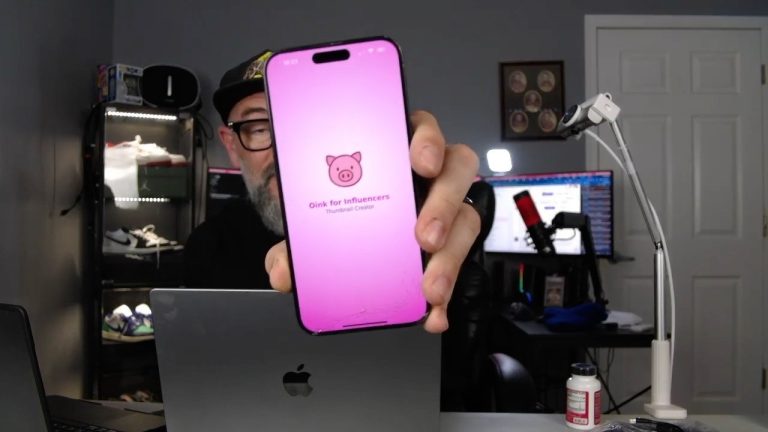
All of these Facebook features are live for Pro subscribers right now. Grab Oink for Influencers and start posting more, faster, today.